Get Hashling running in about 10 minutes

Free and open source. No account and no experience needed. First, which computer is it for?

  • A Mac with Apple siliconM1 or newer
  • macOS 14 or newerSonoma, Sequoia, Tahoe and later
  • 3 GB of free spaceand an internet connection
  • Your Mac passwordnot needed with the installer

Not sure? Click the Apple menu, then About This Mac. It shows your chip and macOS version.

In progress

Hashling for Windows isn’t ready yet

It is being built now, and it will work the same way as on Mac: it lives on your PC, explains what it finds in plain words, and changes nothing until you say yes.

  • Scam check for texts, emails, links and screenshots
  • Who your apps talk to, and when one starts sending data somewhere new
  • Programs that start by themselves
  • Your AI tools and what they are allowed to do
  • Your settings, scored, from Defender to updates
  • Your phone, with the same phone mode as on Mac
Follow on GitHub

On GitHub, click Watch, then Custom, then Releases to get an email when it’s out. Until then, keep Microsoft Defender switched on. It comes free with Windows. Have a Mac as well? Set it up there now.

Pick one way

Easiest

Ask your AI agent to do it

Use Claude Code, Cursor, Codex or another AI that can run commands on your Mac? Copy this prompt into it. It reads Hashling’s own instructions, installs everything, connects itself, and stops to tell you whenever it needs you.

Prompt for your AI agent

Set up Hashling on my Mac. Hashling is a free, open-source personal AI cybersecurity agent for Macs: https://github.com/0xArx/hashling

Read SKILL.md in that repo first and follow it. Check that my Mac can run Hashling, install it, and connect yourself to it. Explain each step in plain words, and tell me before anything needs me (like my Mac password or a switch in System Settings). When it is done, give me a short check-up of my Mac.

Paste one line into Terminal

Terminal is a window you type commands into. You only need it for this one line.

  1. Press ⌘ + Space, type Terminal, press Return.
  2. Copy this line, paste it in with ⌘ + V, press Return:
curl -fsSL https://gethashling.com/install.sh | sh

Download and double-click

Rather not type anything? Download Hashling and double-click its installer.

  1. Download Hashling and double-click the ZIP to unpack it.
  2. Open the folder and double-click Install Hashling.command.
Download Hashling (ZIP)

If macOS says it cannot verify the file: open System Settings, Privacy & Security, scroll down, click Open Anyway, then double-click again.

What happens while it installs

The installer shows six numbered steps and explains each one. You can keep using your Mac while it works.

  1. 1
    Checks the tools Hashling needsInstalls Homebrew if it is missing (a free tool for installing Mac software).
  2. 2
    Installs the scanning enginesClamAV and YARA-X, open-source malware scanners.
  3. 3
    Adds osqueryLets Hashling see what is running on your Mac.
  4. 4
    Downloads HashlingStraight from GitHub.
  5. 5
    Gets the latest malware fingerprintsAbout 110 MB, updated automatically from then on.
  6. 6
    Starts HashlingA # appears in your menu bar. It starts by itself every time you log in.

It may stop to ask you

  • “Password:” Type your Mac password and press Return. Nothing appears while you type, not even dots. That is normal.
  • A “Command Line Tools” window (some Macs). These are free tools from Apple. Click Install, then Agree. The installer waits and carries on by itself.
  • “Install Homebrew now?” or “Press RETURN”. Press Return.
  • Notifications and Bluetooth for Hashling. Click Allow. That is how it warns you, and how it spots hidden trackers like AirTags.

Then a short setup

Your browser opens the Hashling dashboard and asks you four quick things.

  1. Pick how much detail you want. Choose Simple unless you work in tech. You can change it any time.
  2. Turn on Full Disk Access. Click Open System Settings, switch Hashling on, come back and click Check again. This lets Hashling see what macOS keeps private, like who can use your camera.
  3. Add an AI helper if you have a Claude account. This is optional, since every warning already explains itself.
  4. Turn on the two recommended protections: safe browsing, and locking away malware automatically.
Hashling's setup screen asking how much detail you want, with Simple, Standard and Expert options

That’s it. Hashling watches from now on.

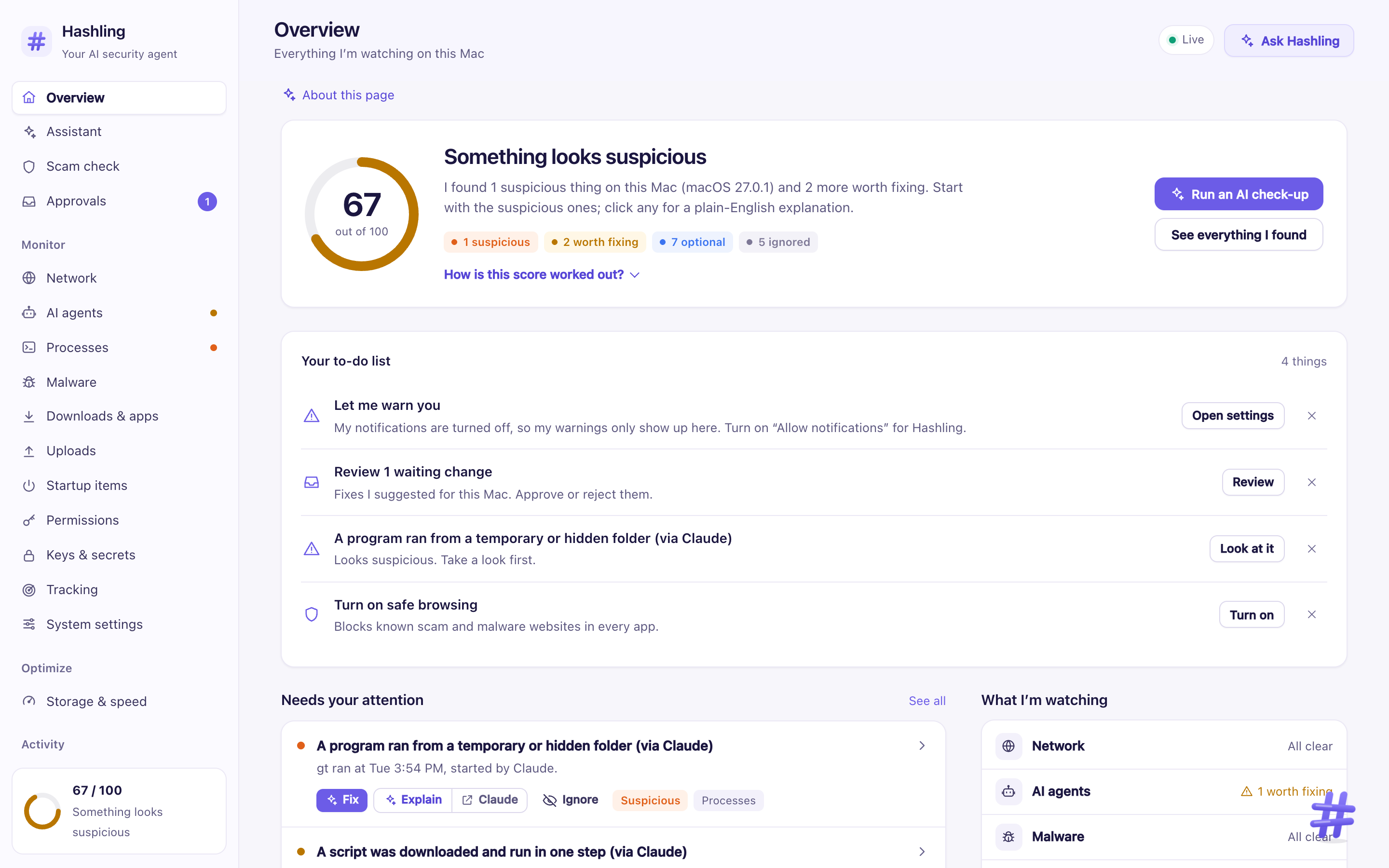
Click the # in your menu bar any time. Hashling tells you if anything is wrong, in plain words, and what to do about it. Nothing on your Mac changes until you approve it with Touch ID. Want it on your phone too? Open Settings, then Your phone.

The Hashling home screen: a security score, a short to-do list, and what needs attention
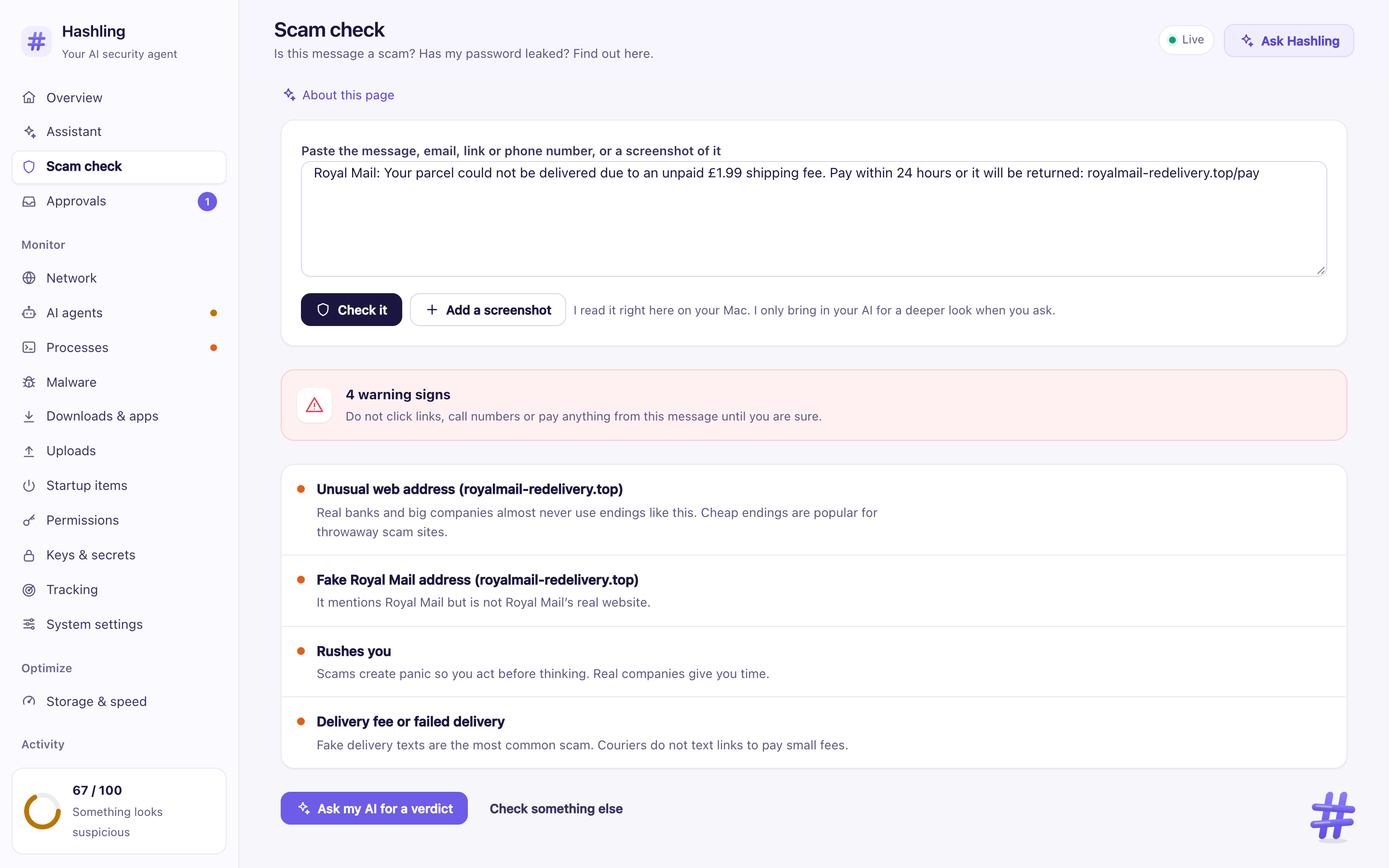
Hashling's scam check flagging a fake Royal Mail delivery text with four warning signs
Is this a scam? Paste a text, email or link and see the warning signs.
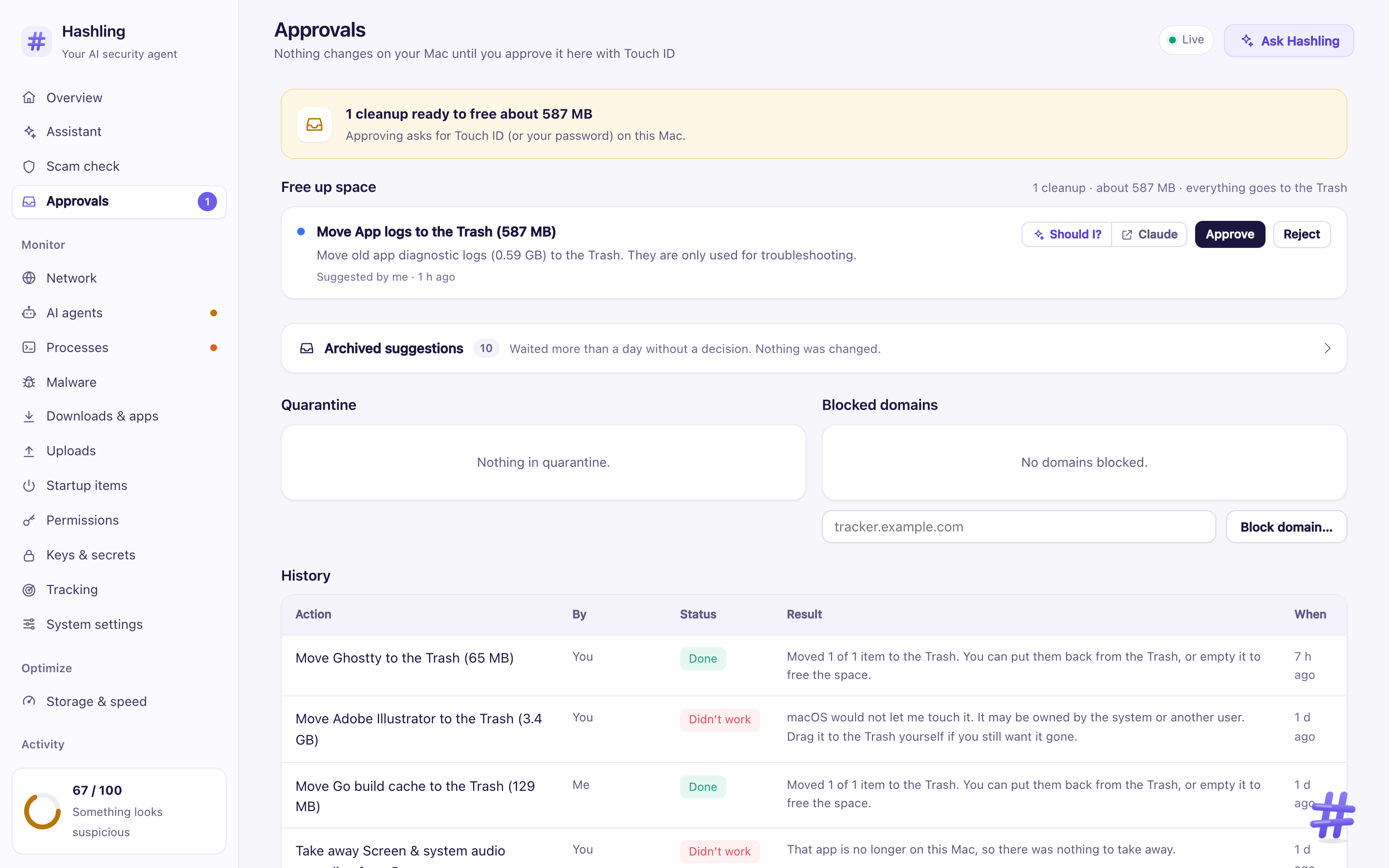
Hashling's approvals page listing suggested fixes, each waiting for Approve or Reject
You stay in control. Every fix waits for your Touch ID.

Questions

Does it cost anything?

No. Hashling and everything it installs are free and open source. There is no account and no subscription.

Does it upload my files?

No. Hashling runs on your Mac and never uploads your files. It downloads updates: malware fingerprints and lists of scam websites. An AI helper, if you connect one, only sees what you ask it about. With Fully local switched on in Settings, the AI runs on your Mac and nothing you ask leaves it.

I have a Windows PC. When can I use it?

A Windows version is being built. Follow the project on GitHub (click Watch, then Custom, then Releases) to hear when it’s out. Until then, keep Microsoft Defender switched on.

I have an Intel Mac. Can I use it?

Not yet. Hashling needs a Mac with Apple silicon (M1 or newer). The installer checks this first and tells you, so nothing gets half installed.

Something went wrong. What now?

The installer says what went wrong in plain words and what to do. Running it again is always safe: it skips what is done and fixes what is missing. Every message and its fix is listed in the install guide.

How do I update or remove it?

When a new version is out, Hashling shows an Update now button in its dashboard. It asks for your Touch ID and keeps your settings and history. Installing again the same way works too. To remove it, open Terminal and run hashling uninstall --all. It lists anything it left behind, so nothing stays on your Mac by surprise.

Want every detail? Read the full install guide, or see everything Hashling checks.